
Connect Snug to Claude
Last updated:
Let Claude run your Snug planner. You paste one link into Claude and sign in to Snug. There is no key to copy and no config file to edit. It takes about 2 minutes, and it works in Claude on the web, the desktop app, the phone apps and Claude Code.
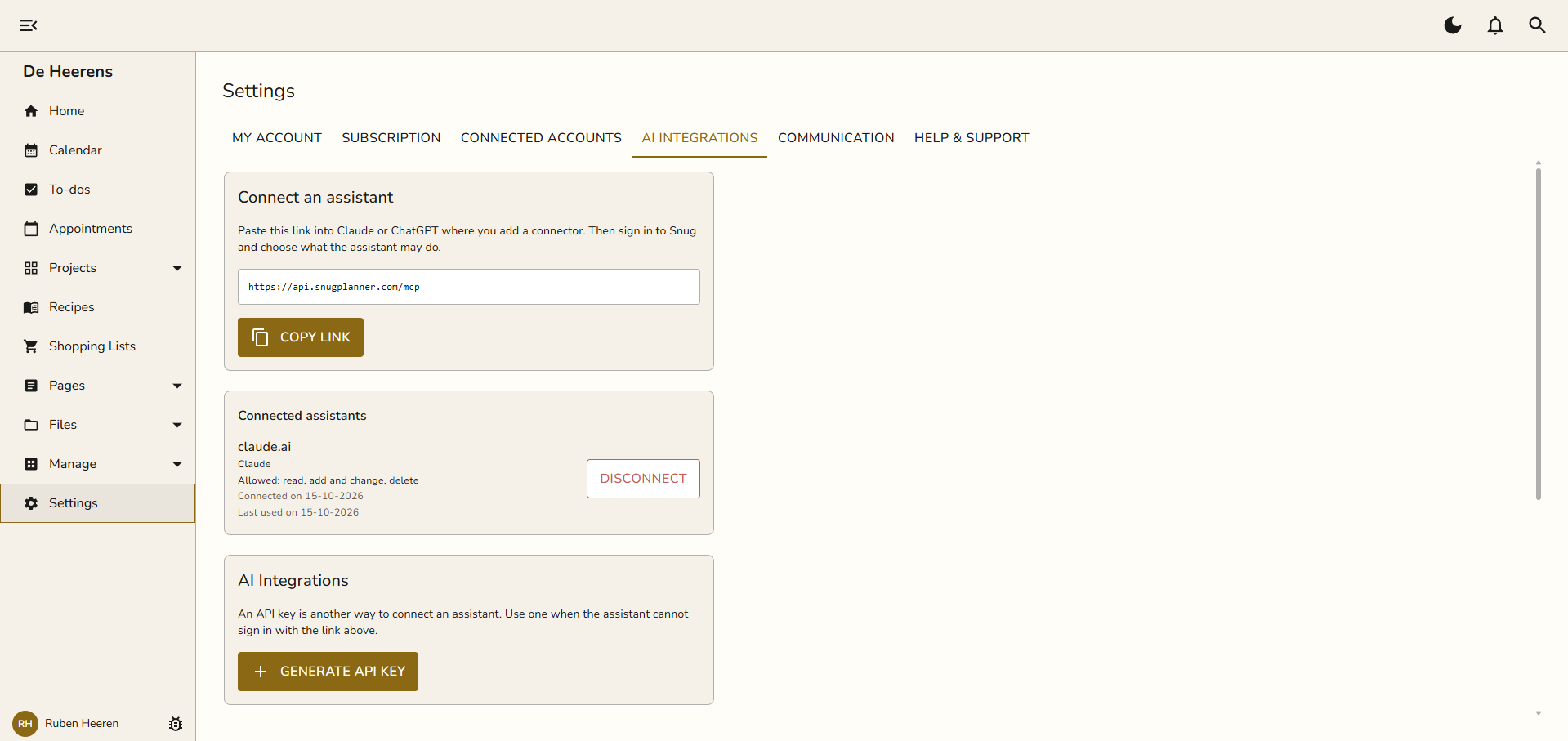
1. Copy the link in Snug
Open Snug and go to Settings → AI Integrations. In Connect an assistant, click Copy link.
2. Add Snug as a connector in Claude
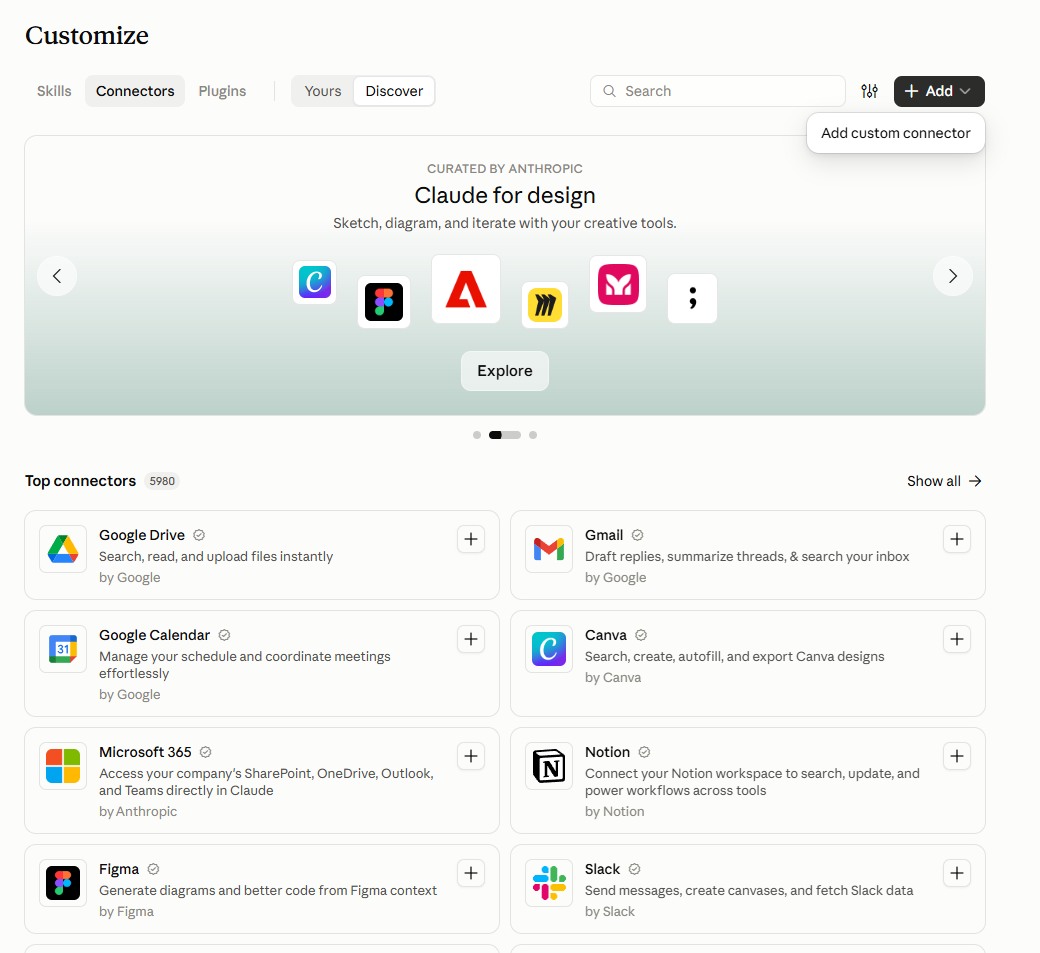
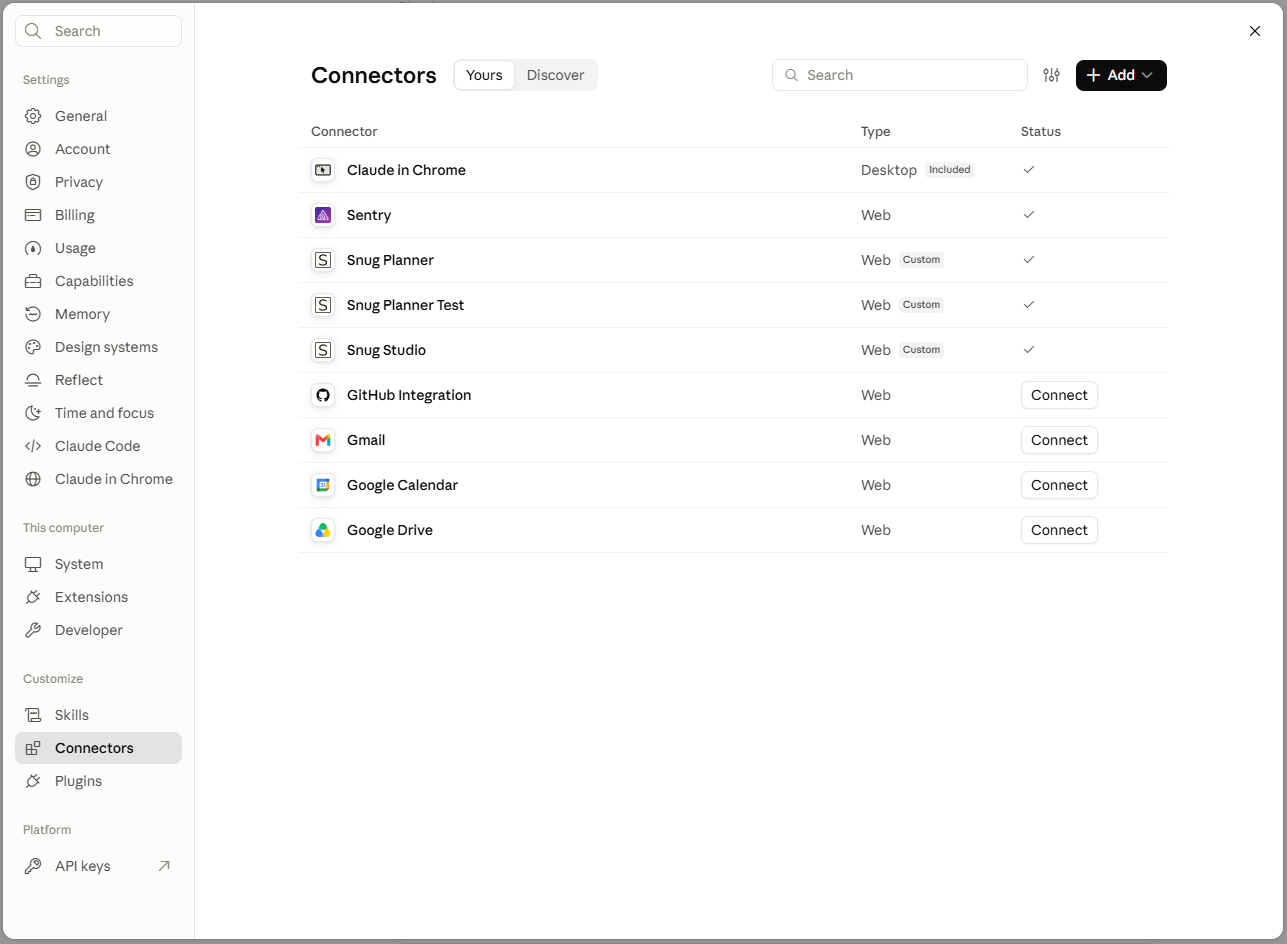
- On claude.ai, open Customize → Connectors.
- Click + Add and choose Add custom connector.
- Name it
Snug Plannerand paste the link you copied. - Click Continue.
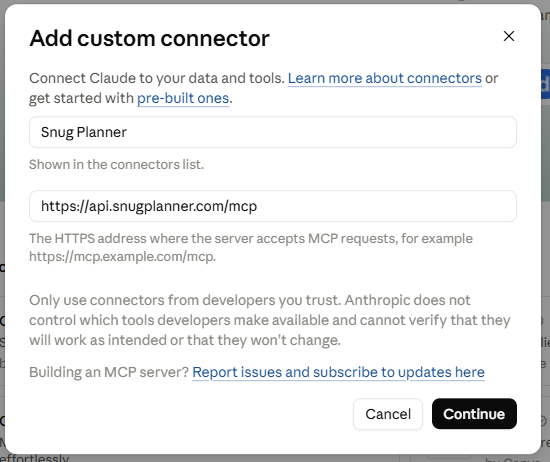
Custom connectors work on every Claude plan. The Free plan allows one.
3. Sign in and choose what Claude may do
Claude opens a Snug page. Sign in if you are not signed in yet, then pick the planner Claude should use. Tick what Claude may do:
- Read your items
- Add and change items
- Delete items
Click Allow.
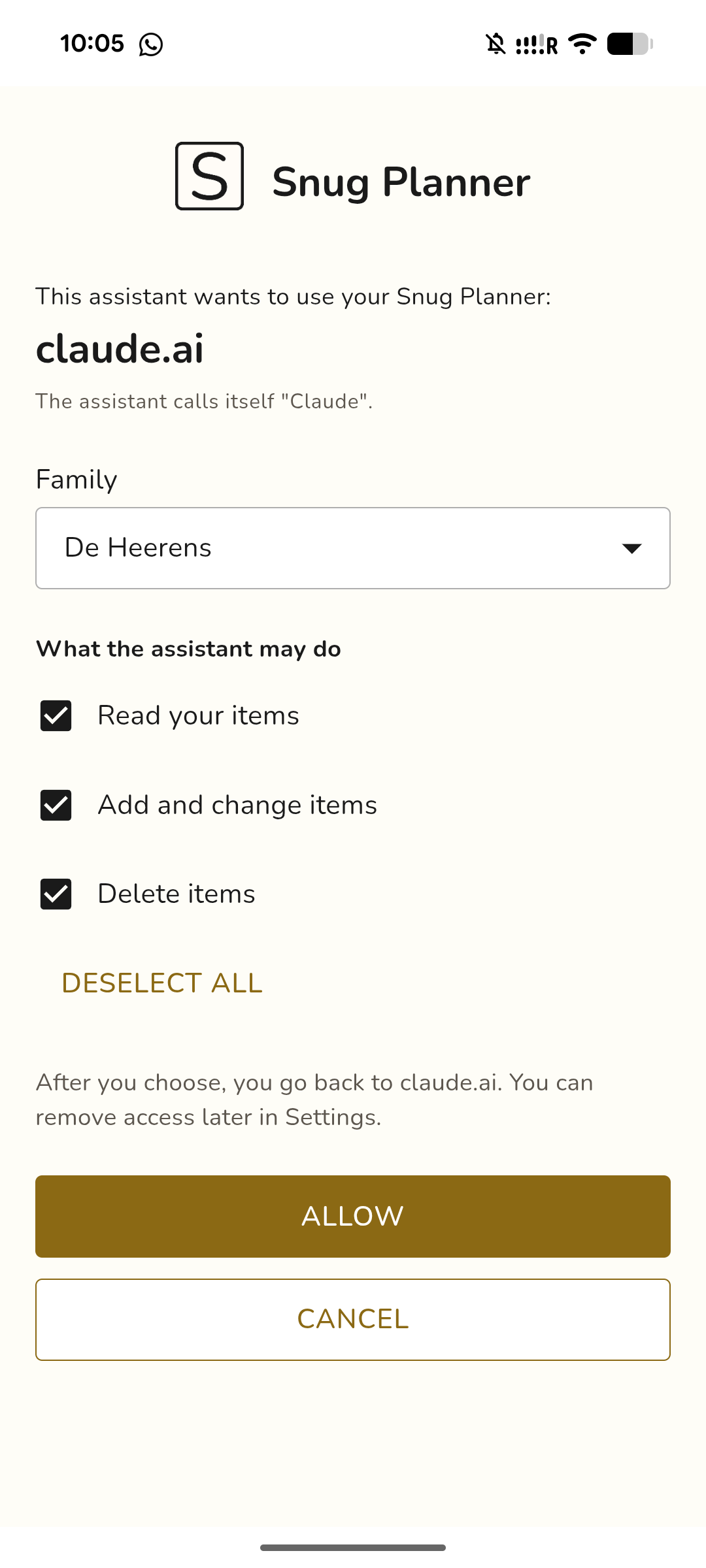
You go back to Claude, and Snug Planner shows as connected in your connectors.
4. Verify it works
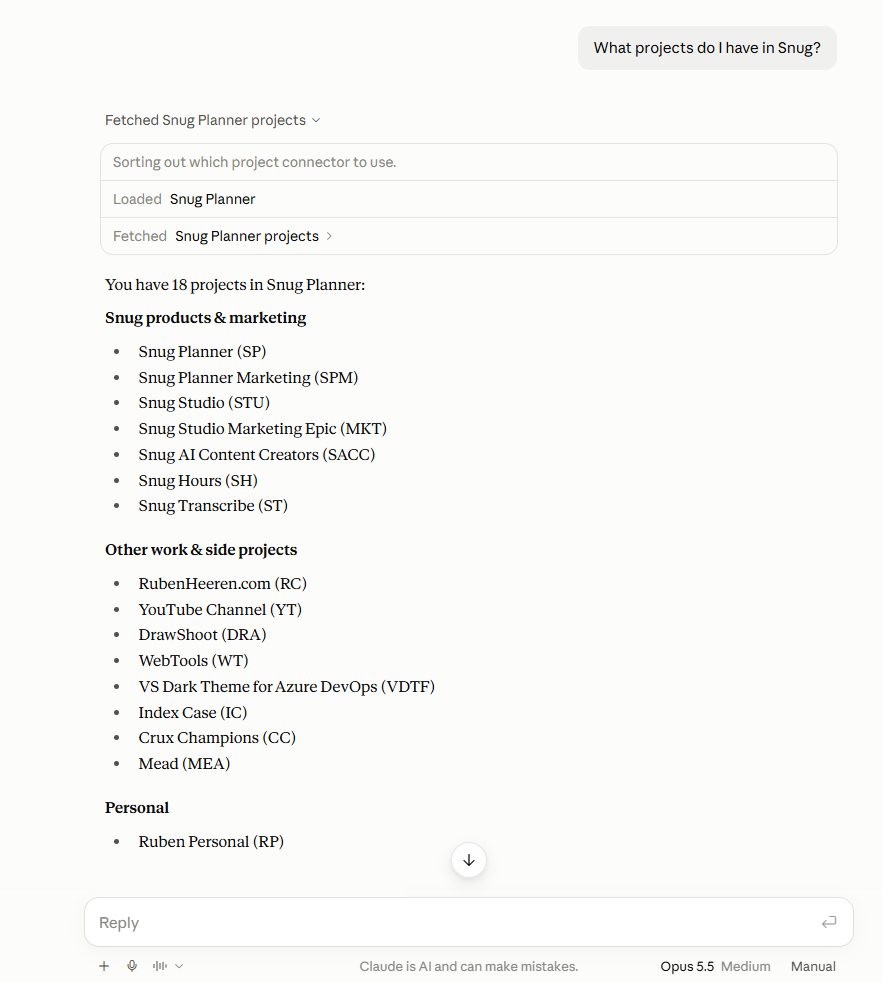
Start a new chat. Turn on the Snug Planner connector with the + button below the message box, then ask:
What projects do I have in Snug?
Claude calls the Snug tools and lists your projects. You're all set.
Claude Code
A connector you add on claude.ai also shows up in Claude Code when you sign in with the same Claude account. To connect only Claude Code, run:
claude mcp add --transport http snug-planner https://api.snugplanner.com/mcp
Then type /mcp, pick snug-planner and sign in to Snug.
Disconnect
Every connected assistant shows in Snug under Settings → AI Integrations → Connected assistants, with what it may do and when it was last used. Click Disconnect and Claude loses access right away. The screenshot in step 1 shows Claude in that list.
Example prompts
Once connected, try any of these:
Plan our week. "Look at my calendar and open to-dos, then suggest a plan for this week and add the to-dos you recommend."
Triage my board. "Go through the To-do column of my Home Renovation project and flag anything that's overdue or missing a due date."
Page to groceries. "Add all the ingredients from my Lasagna page to the Groceries shopping list."
Email to to-dos. "Here's an email from school. Create to-dos for every action item and put them in my Back to School project."
Meal plan. "Make a dinner plan for next week from the recipes in my pages, and build a shopping list for it."
Quick capture. "Add a to-do to call the plumber tomorrow morning, and save the plumber as a contact with this number: 0470 12 34 56."
Catch up. "What's on my calendar for tomorrow, and is anything double-booked?"
Clean up. "Find to-dos in my Garden project that have been in the In Progress column for more than two weeks and summarize them."
See it in action
Read the walkthrough: Run your family planner with Claude.
Troubleshooting
| Problem | Fix |
|---|---|
| Claude doesn't see the Snug tools | Turn on the Snug Planner connector for the chat with the + button below the message box. |
| Claude can read but not add things | You did not tick Add and change items. Disconnect in Snug, then connect again from Claude and tick it. |
| It worked before, now it doesn't | Check Settings → AI Integrations → Connected assistants in Snug. If Claude is gone from the list, click Connect on the connector in Claude again. |
| Your assistant cannot sign in | Use an API key instead. Create one under Settings → AI Integrations in Snug and add it as a Bearer token. |
Still stuck? Email [email protected].